



In today’s connected world, accessing mobile internet is essential. But what happens when you encounter a PDP Authentication Failure? This common error can disrupt your internet connectivity, leaving you without data service when you need it most.
What Is PDP Authentication Failure?
PDP stands for Packet Data Protocol, which facilitates mobile devices in connecting to the internet through their network carrier. A PDP Authentication Failure occurs when your device cannot establish a connection with the network provider’s server.
This failure typically results in:
- No mobile internet connectivity.
- Error messages like “Could not activate cellular data network” or “PDP Authentication Failure.”
Common Scenarios Where This Error Occurs:
- After switching to a new SIM card.
- When traveling internationally.
- During network outages or maintenance.
- After changing mobile network settings.
Causes of PDP Authentication Failure
1. Incorrect APN Settings
The Access Point Name (APN) settings on your device are critical for internet connectivity. If these are misconfigured, the PDP authentication process will fail.
Solution:
- Update or reset the APN settings provided by your carrier.
2. SIM Card Issues
A faulty or improperly inserted SIM card can trigger this error.
Solution:
- Remove and reinsert the SIM card properly.
- Try using a different SIM card to check if the issue persists.
3. Network Carrier Problems
Sometimes, the issue isn’t with your device but with the network carrier itself.
Solution:
- Contact your mobile carrier to check for network outages or account-related issues.
4. Software Glitches or Updates
Device software or firmware updates can sometimes disrupt network settings, leading to PDP Authentication Failure.
Solution:
- Restart your device.
- Check for pending software updates and install them.
5. Roaming Settings
International travelers often face this issue due to incorrect roaming settings.
Solution:
- Enable data roaming if you’re traveling abroad.
- Verify that your carrier supports international data roaming.
How to Fix PDP Authentication Failure on Android
- Check APN Settings
- Go to Settings > Network & Internet > Mobile Network > Access Point Names.
- Ensure the APN settings match those provided by your carrier.
2. Restart Your Device
- A simple restart can often resolve minor software glitches.
3. Reset Network Settings
- Go to Settings > System > Reset > Reset Network Settings.
- This will reset all Wi-Fi, mobile, and Bluetooth settings.
4. Update Carrier Settings
- Check for carrier settings updates in Settings > About Phone > Software Updates.
5. Remove and Reinsert SIM Card
- Power off your device.
- Remove the SIM card and reinsert it after a few seconds.
How to Fix PDP Authentication Failure on iOS (iPhone)
- Check APN Settings
- Go to Settings > Mobile Data > Mobile Data Options > Mobile Data Network.
- Ensure the APN settings are correctly configured.
- Restart Your iPhone
- Hold down the power button and slide to power off.
- Turn it back on after a few seconds.
- Reset Network Settings
- Go to Settings > General > Reset > Reset Network Settings.
- Note: This will erase all network-related settings.
- Update Carrier Settings
- Go to Settings > General > About and wait for a prompt to update carrier settings.
- Enable and Disable Airplane Mode
- Toggle Airplane Mode on and off to refresh network connectivity.
Preventive Measures to Avoid PDP Authentication Failure
- Keep Software Updated
Always keep your device’s operating system and carrier settings up to date. - Verify APN Settings
Double-check APN settings whenever you switch carriers or travel internationally. - Use a Reliable SIM Card
Ensure that your SIM card is functional and compatible with your device. - Backup Network Settings
Before making any changes, back up your device’s network settings. - Use eSIM for Seamless Connectivity
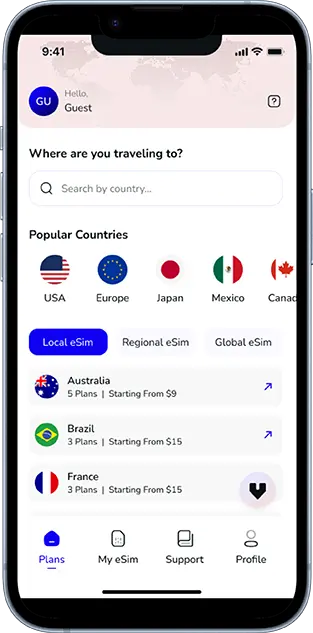
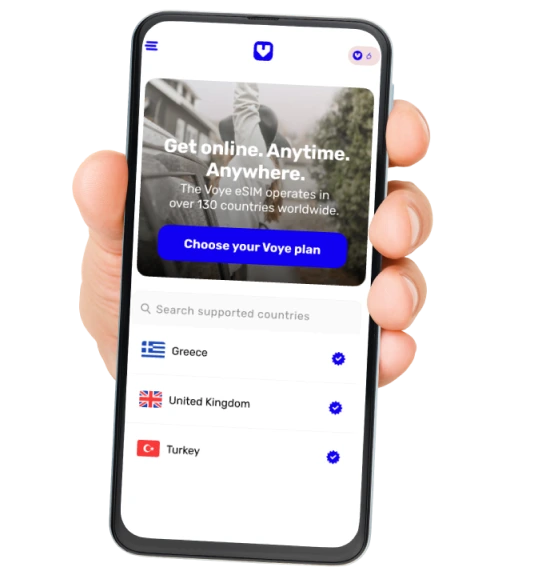
Consider switching to an eSIM for hassle-free mobile internet connectivity, especially when traveling internationally. Voye Global offers reliable eSIM solutions with seamless activation and global coverage.
When to Contact Your Network Carrier
If none of the solutions above work, it may be time to contact your network carrier. Provide them with the following details:
- The exact error message.
- Your device make and model.
- Your current location.
Conclusion
PDP Authentication Failure can be frustrating, but it’s usually fixable with a few troubleshooting steps. Whether it’s adjusting APN settings, updating software, or switching to a reliable eSIM provider like Voye Global, you can restore your mobile internet connection quickly.
Explore Voye Global’s affordable and reliable eSIM solutions today for seamless connectivity and uninterrupted mobile data.
Seamless Mobile Data Everywhere













 English