



In today’s hyper-connected world, staying online while on the go is crucial. Whether you’re traveling, working remotely, or need internet access for another device, mobile hotspots and tethering can be lifesavers. However, many users wonder: does hotspot and tethering use more data than using your phone directly? If you’ve ever been concerned about your data usage, this blog is here to clear up the confusion.
We’ll explore what tethering and hotspots are, how they work, and whether they use more data. Plus, we’ll provide tips to help you save data and get the most out of your mobile internet.
What Are Hotspot and Tethering?
Before diving into data usage, let’s define what hotspot and tethering actually mean.
- Tethering: Tethering refers to the process of sharing your smartphone’s mobile data connection with another device, such as a laptop or tablet, via a USB cable, Bluetooth, or Wi-Fi.
- Hotspot: A hotspot is a specific feature of tethering where your phone creates a Wi-Fi network, allowing other devices to connect and use its internet connection. It’s similar to having a mini router in your pocket.
In essence, both hotspot and tethering enable you to use your phone’s data on other devices. The terms are often used interchangeably, but a hotspot typically refers to the Wi-Fi sharing feature specifically.
Does Hotspot and Tethering Use More Data?
The simple answer is: It depends on how you use it.
In most cases, hotspot and tethering do not inherently use more data than using your phone directly. However, the type of activities performed on the connected device can significantly increase data consumption. Let’s break this down:
1. Activity on the Tethered Device Matters
When you’re using your phone directly, you might limit yourself to lightweight browsing or social media. However, when you connect a laptop or tablet to a hotspot, you may engage in data-heavy activities like streaming HD videos, downloading large files, or updating software. These activities consume more data.
For example:
- Streaming a movie in HD on your laptop can use up to 3GB of data per hour.
- Downloading a software update can easily use hundreds of megabytes.
If you’re tethering your laptop, it’s crucial to be mindful of the activities you’re doing, as they could quickly deplete your data allowance.
2. Automatic Updates on Connected Devices
Many devices like laptops, tablets, and gaming consoles are set to automatically update apps, software, and the operating system. When connected to your mobile hotspot, these updates can consume a large amount of data without you realizing it.
To prevent this, turn off automatic updates on your connected devices or set them to update only when connected to a Wi-Fi network.
3. Background Apps and Syncing
Devices connected via hotspot often run more background processes compared to a smartphone. For example, your laptop might sync cloud services like Google Drive, Dropbox, or OneDrive, which can use a lot of data in the background. Similarly, email clients and messaging apps may be constantly downloading attachments or syncing data.
On a smartphone, background data usage is usually optimized. But when tethering, the connected device may not be as data-conscious, leading to higher consumption.
Don’t let data worries slow you down.
Enjoy seamless hotspot and tethering with our affordable eSIM packages.
How to Monitor Data Usage While Tethering?
Most smartphones have built-in tools to help you monitor data usage, including how much data is being used by hotspot and tethering. Here’s how you can keep track:
On Android:
- Go to Settings > Network & Internet > Hotspot & Tethering > Data Usage.
- This section shows how much data has been used specifically for hotspot tethering.
On iOS:
- Go to Settings > Cellular > Personal Hotspot.
- Here, you can see the total data used by the hotspot feature.
Additionally, many mobile network providers offer apps or online accounts where you can monitor your data usage in real-time.
Does a Mobile Hotspot Use More Data Than Direct Phone Usage?
The key difference in data usage often comes down to the behavior of the connected device. Here are some scenarios where tethering or hotspot might use more data:
- Web Browsing on a Laptop: When you browse the internet on a laptop, web pages may load more data-rich content (e.g., higher-resolution images, videos) compared to browsing on a mobile browser.
- Streaming Services: Streaming on a laptop may default to higher video quality, which uses more data. For instance, Netflix may stream in HD or even Ultra HD on a laptop, while on a smartphone it may default to a lower resolution.
- Cloud Services and Backups: Laptops and tablets often sync files with cloud storage, which can be data-intensive. Automatic backups can also use a lot of data.
In contrast, mobile apps are often optimized for data efficiency and may not consume as much data.
Tips to Reduce Data Usage on Hotspot and Tethering
If you need to use a hotspot or tethering frequently, here are some ways to minimize your data usage:
1. Enable Data Saver Mode
Most smartphones have a data saver mode that restricts background data usage and optimizes app data consumption. Enabling this can help reduce the amount of data used while tethering.
2. Set Data Limits
Many phones allow you to set data usage limits. This feature can notify you when you’re nearing your data cap, preventing overage charges.
3. Disable Automatic Updates
Turn off automatic updates on your laptop or connected device. Instead, update apps and software manually when connected to a secure Wi-Fi network.
4. Monitor Background Apps
Check which apps are running in the background and consuming data. Close unnecessary apps, or disable background data usage for certain apps.
5. Adjust Streaming Quality
Lower the video quality when streaming. For instance, switch from HD to SD quality on YouTube or Netflix. This can cut your data usage by more than half.
6. Use a VPN Wisely
If you use a VPN while tethering, be aware that it may use more data due to encryption overhead. Choose a VPN with data compression features if possible.
Travel smarter with eSIM
Enjoy uninterrupted hotspot connectivity with our eSIM data plans.
Does Using an eSIM Affect Data Usage?
With the rise of eSIM technology, many travelers are opting for eSIMs to access mobile data globally without needing a physical SIM card. Using an eSIM can be a great way to stay connected when traveling, especially when using a hotspot. However, the same data consumption principles apply. Whether you use a physical SIM card or an eSIM, data usage depends on the activities performed on the connected device.
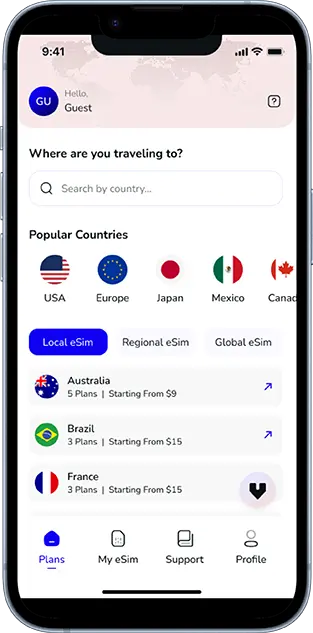
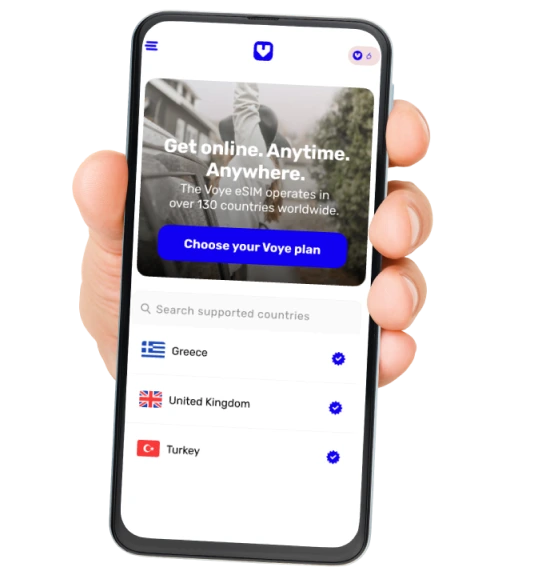
If you’re using an eSIM plan like those offered by Voye Global, be sure to monitor your data usage carefully, especially when using the hotspot feature, to avoid running out of data.
Conclusion: Does Hotspot and Tethering Really Use More Data?
In conclusion, hotspot and tethering themselves do not use more data than using your phone directly. However, it’s the activities you perform on the connected device that can lead to higher data consumption. Streaming videos, downloading files, and syncing cloud services are common culprits that can quickly drain your data allowance.
By monitoring your usage, adjusting settings, and being mindful of data-heavy activities, you can effectively manage your data and make the most of your mobile internet, whether you’re using a traditional SIM or an eSIM. With a bit of awareness and planning, you can enjoy seamless connectivity without worrying about unexpected data charges.
Seamless Mobile Data Everywhere













 English